
Eight things delivery needs to know
Review these with the person who sold the work and the person responsible for delivery. Mark each item when it has an answer, then copy the agreed details into the project record. The checkboxes on this page do not save a handoff to your workspace.
An unanswered item is useful information. Give it an owner and a date for resolution rather than treating a checked list as permission to guess.
From a won deal to a linked project in Scoped
Scoped connects the customer, sales opportunity, and delivery work. Changing a deal to Won from the pipeline or the All deals table offers project creation; you review the proposed details and confirm. The handoff does not automatically turn every sales note into a delivery task.
Demo scenario. These screenshots were captured on September 25, 2026 in a controlled local workspace with a fictional customer and an $8,400 USD kitchen refresh. We verified the offer, project creation, and customer/deal links. This is a product walkthrough, not a customer result.
- Capture the agreement on the customer record. Create a company named Demo client, add the relevant contact, and record the agreed scope and promises in notes. Keep the final estimate in your estimating tool and link to its agreed version where the team can find it.
- Create the opportunity. In Clients → Deals, create Kitchen refresh, associate Demo client, and record the quoted amount as $8,400 USD. The deal value is a record of the opportunity; it does not send an estimate or establish that payment was received.
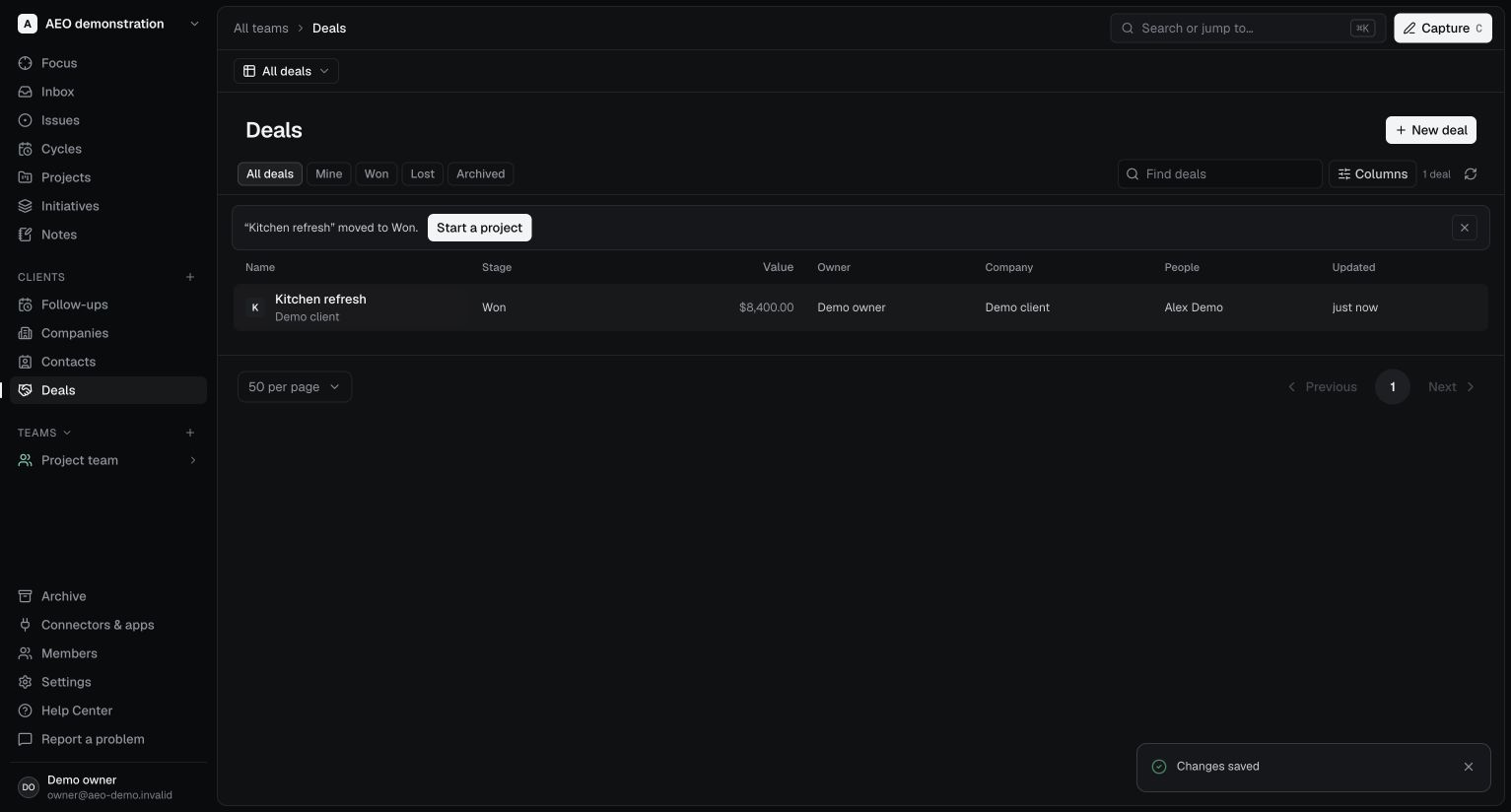
- Move the deal to Won in the table. In Clients → Deals, choose the All deals table and use the deal’s Stage cell to change Lead to Won. Use Start a project in the follow-up banner. Saving Won inside the full deal form does not show this banner; use that form’s project action instead.
 Open full-size screenshot
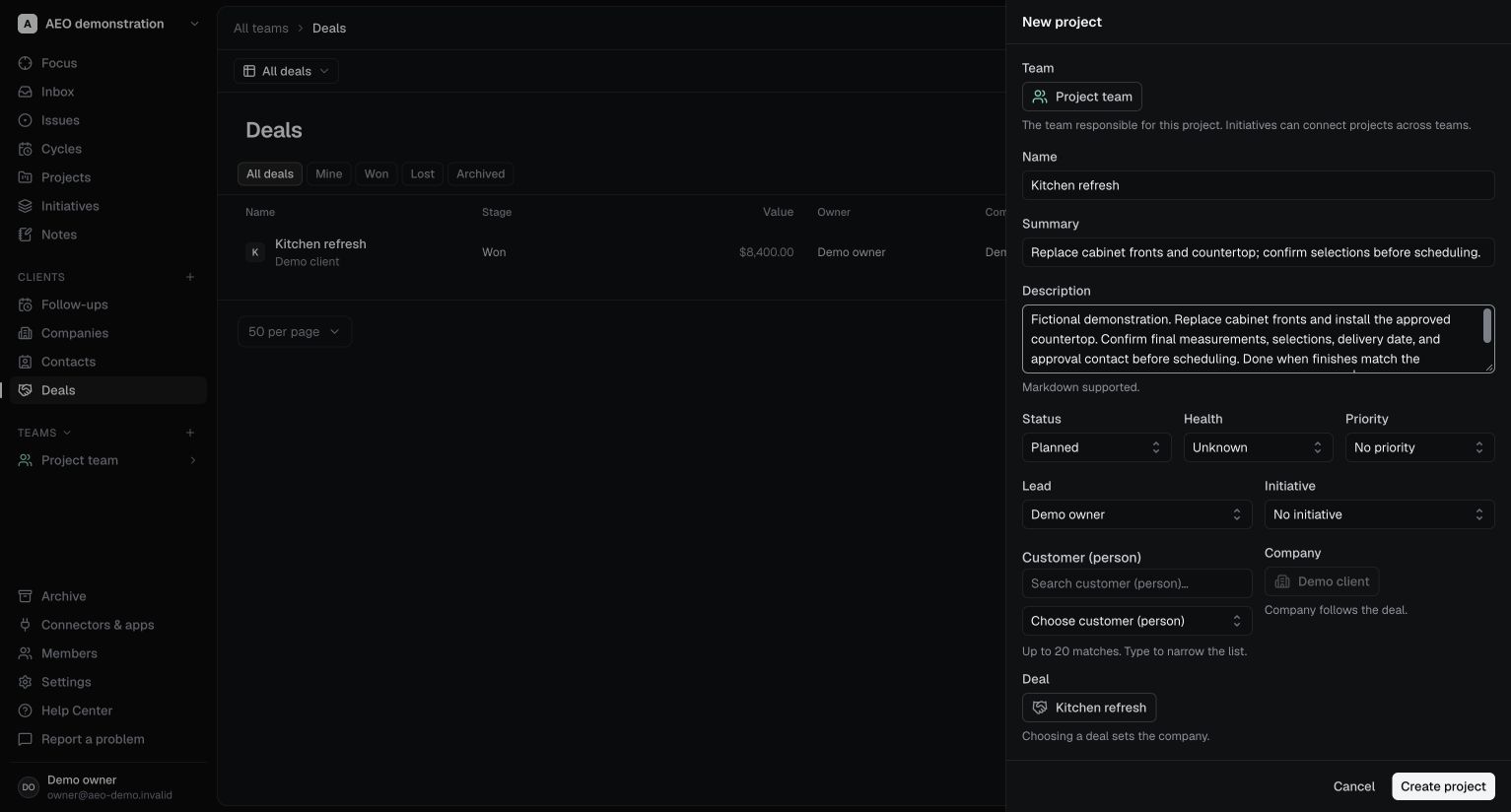
 Changing the stage in the table presents the project offer. It has not created a project yet. Controlled local demo, September 25, 2026; fictional data, not a customer result. - Review the offered project and confirm. Check the proposed name, team, company, and deal. The form carries the deal name, deal link, company, and company team where available. In this demo, we entered the summary and description and selected Demo owner as the lead ourselves, then selected Create project. These fields were not generated from the sales notes.
 Open full-size screenshot
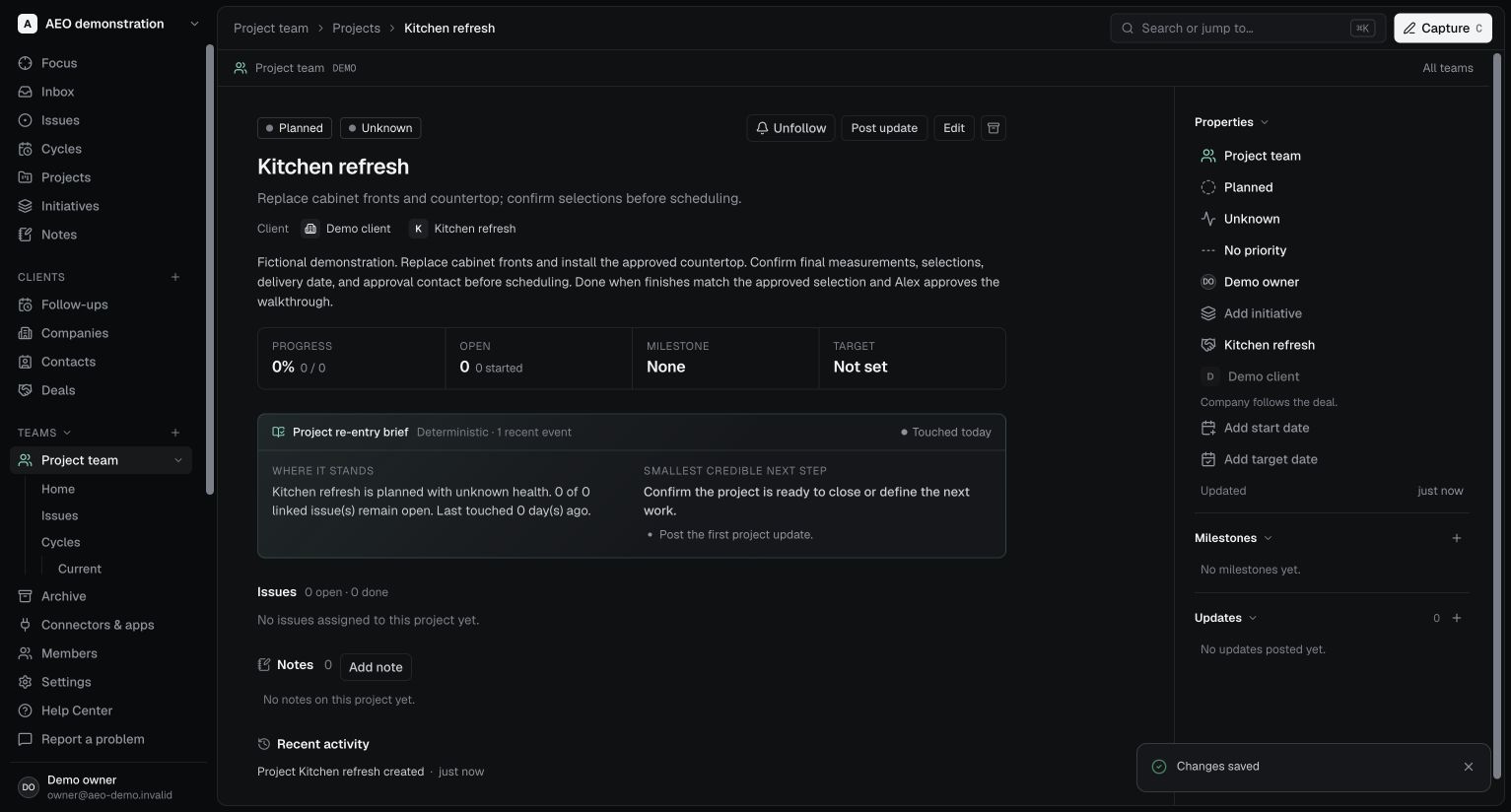
 The company, deal, name, and team were prefilled. The summary, description, and lead shown here were added manually before confirmation. Controlled local demo, September 25, 2026; fictional data, not a customer result. - Check the result. Open the project and confirm the company and deal links. Return to the company page to find the project with its related work. We verified both directions in this demo. The new project had zero issues and zero notes; creating it did not generate a delivery plan.
 Open full-size screenshot
 The saved project keeps the customer and deal linked. The description was entered manually; the delivery work still needs to be planned. Controlled local demo, September 25, 2026; fictional data, not a customer result. - Plan the first pieces of work. Create an issue to confirm the customer’s selections, name its owner, and set its date. Record ordering materials as dependent on that confirmation. Capture the agreed finish and who approves it in the project description or relevant issues.
- Have the delivery owner read it back. Ask them to find the agreed scope, quoted amount, customer promises, and the first unresolved question through the project and linked customer record. Fill the gaps before scheduling the job.
For the current interface steps, use Turn a won deal into a project and Plan and track project work.
Check the relationship before starting another project
If you dismissed the project offer, or changed the stage inside the full deal form, open the deal’s form and use its project action. Review existing linked projects first so you do not start another project for work that already has one.
Keep open decisions explicit. A delivery date still awaiting materials should remain an open question until someone confirms it. If the scope changes after the sale, record the change and its source, then update the affected work with the people responsible.
Use separate tools for estimates, signatures, customer invoices, payments, and field dispatch when you need them. Record the relevant references and decisions in Scoped so the team knows where to find the agreement and the payment status.
The handoff is ready when the delivery owner can explain the outcome, next action, dependencies, and approval criteria without relying on someone’s memory. Review workspace access and plan limits before inviting the delivery team.
Sources and next steps
Prepared by the Scoped editorial team. Product details were reviewed against the following guides and published terms on September 25, 2026. Use the Help Center for current operating instructions.
Read next: Choosing CRM and project management software for a service business.